 SWYA
How to use it
Most shopping apps ask you to build a list. This one asks you one question — what are you out of — and works out the rest: which store it belongs to, which day you buy it, and when to tell you about it.
Setup takes about a minute. You only do it once.Part one
Setting it up
The first time you open the app it asks about the stores you actually walk into. This is the only setup there is, and you can skip it and do it later.
Sign in with your phone number
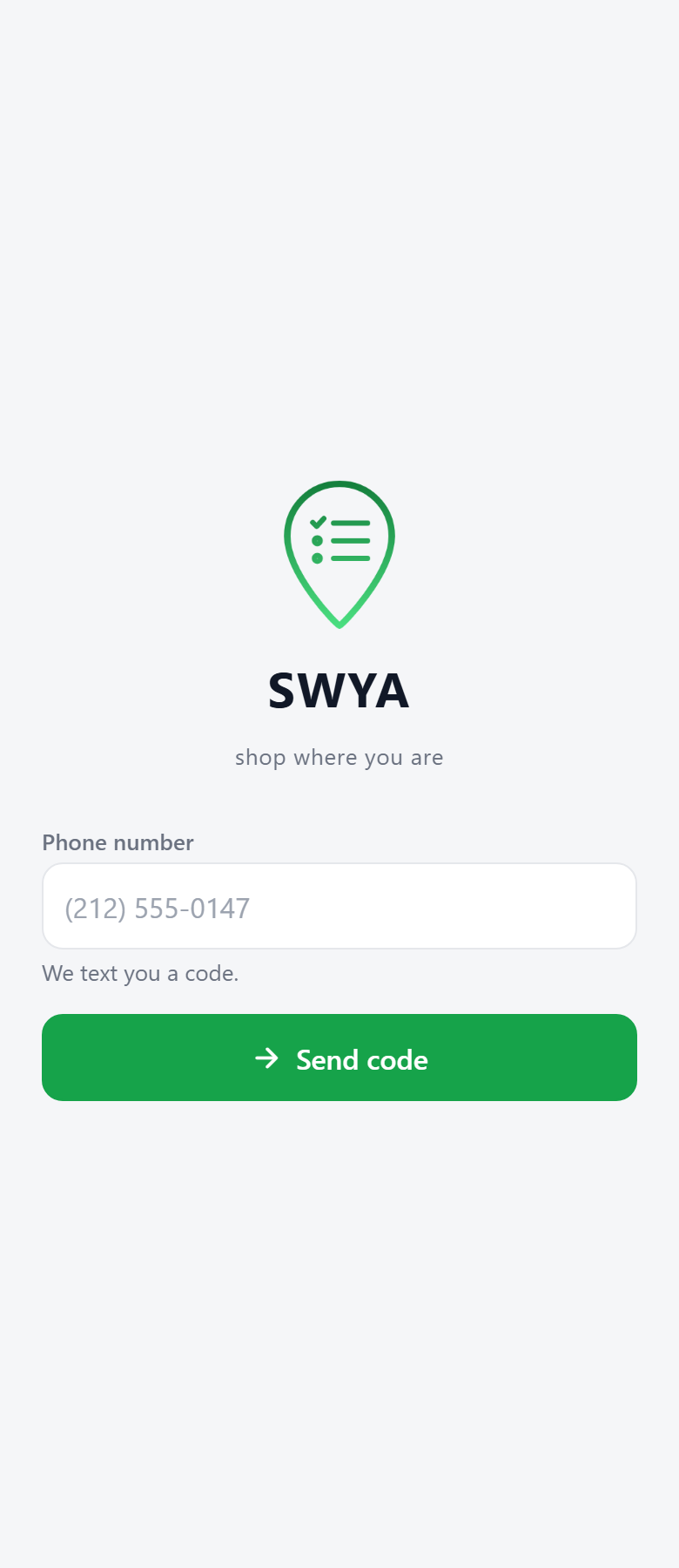
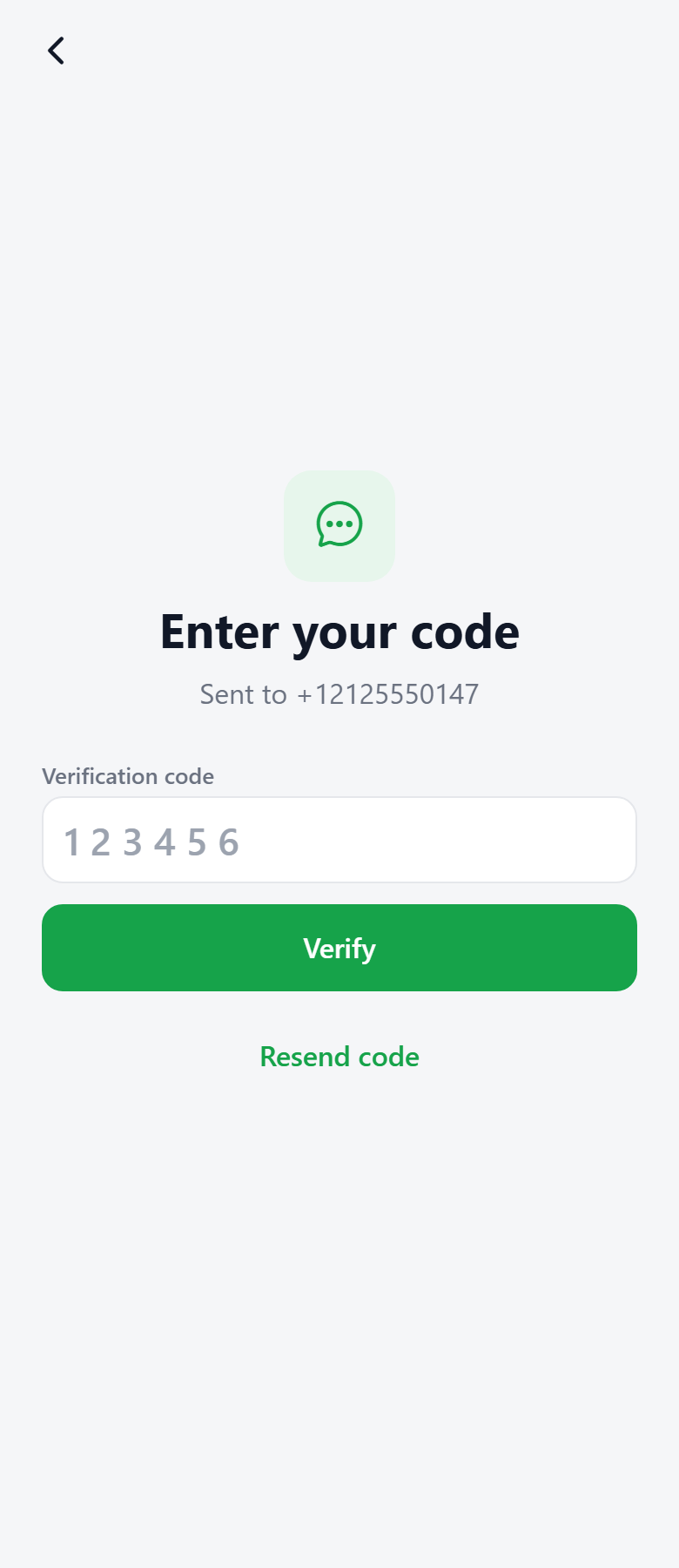
No password to invent and none to forget. Type your number, we text you a six-digit code, you type it back. That is the account.
Your number is also how somebody shares a list with you — they add the number, and the list appears on your phone.
Name the stores you use
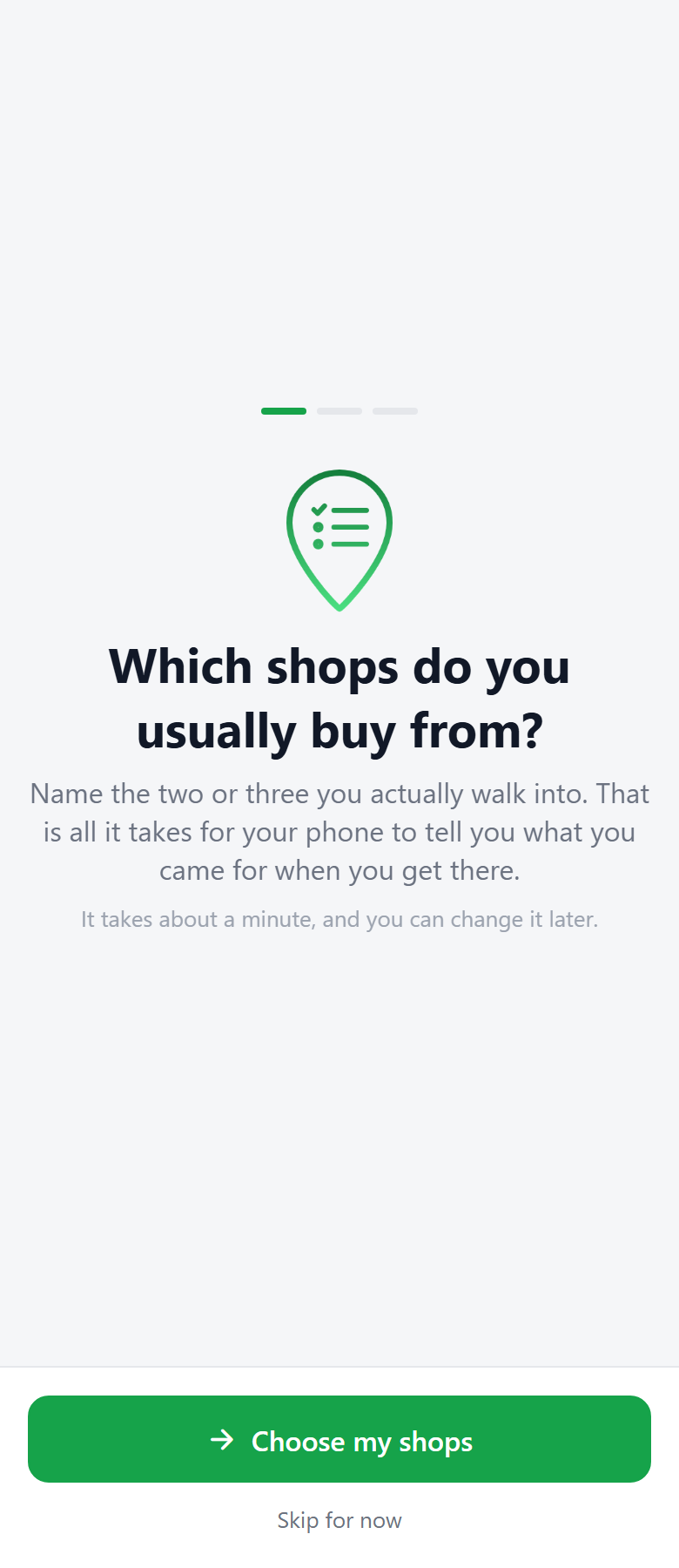
Two or three is plenty — the supermarket you do the weekly shop at, the pharmacy, wherever else you go often. This is what lets your phone know where you are later.
In a hurry? Skip for now goes straight into the app. Nothing breaks; you just will not get the arrival reminders until you add one.
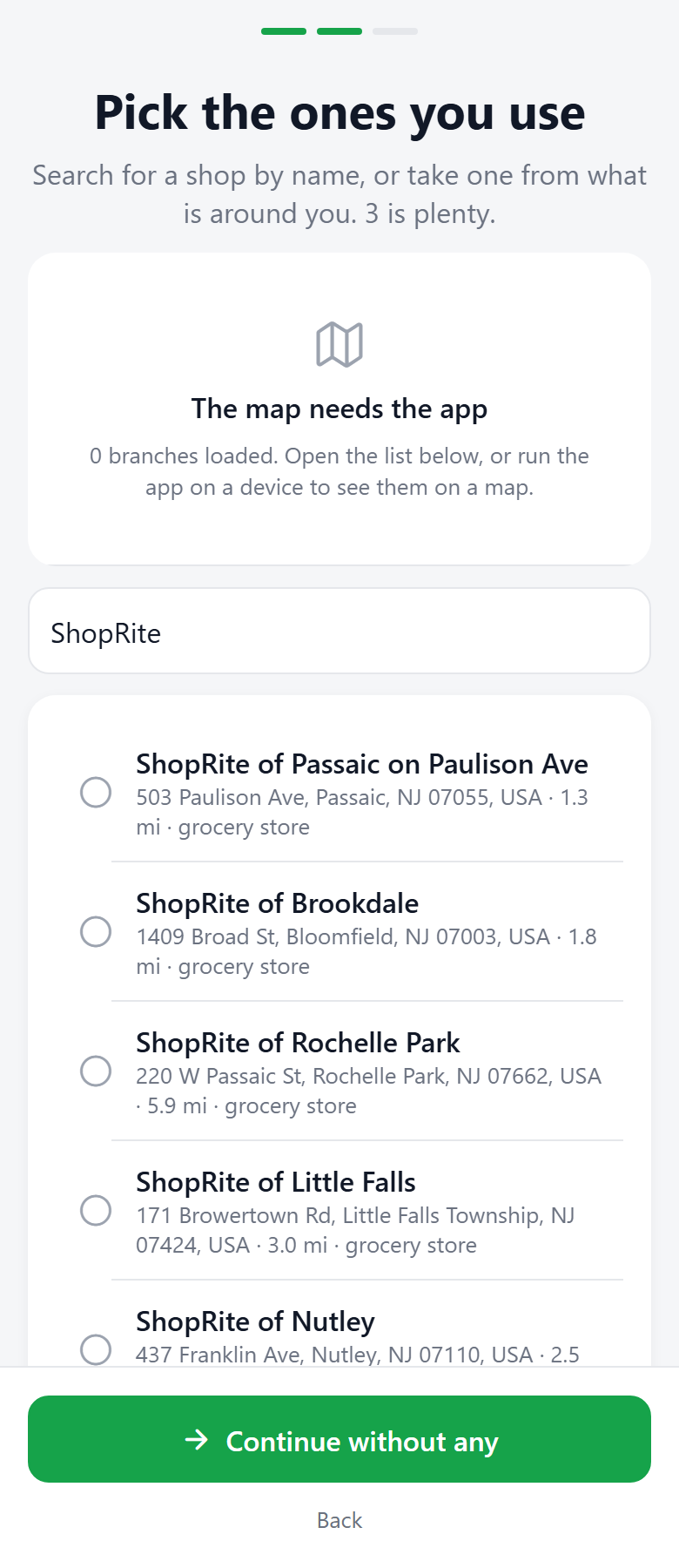
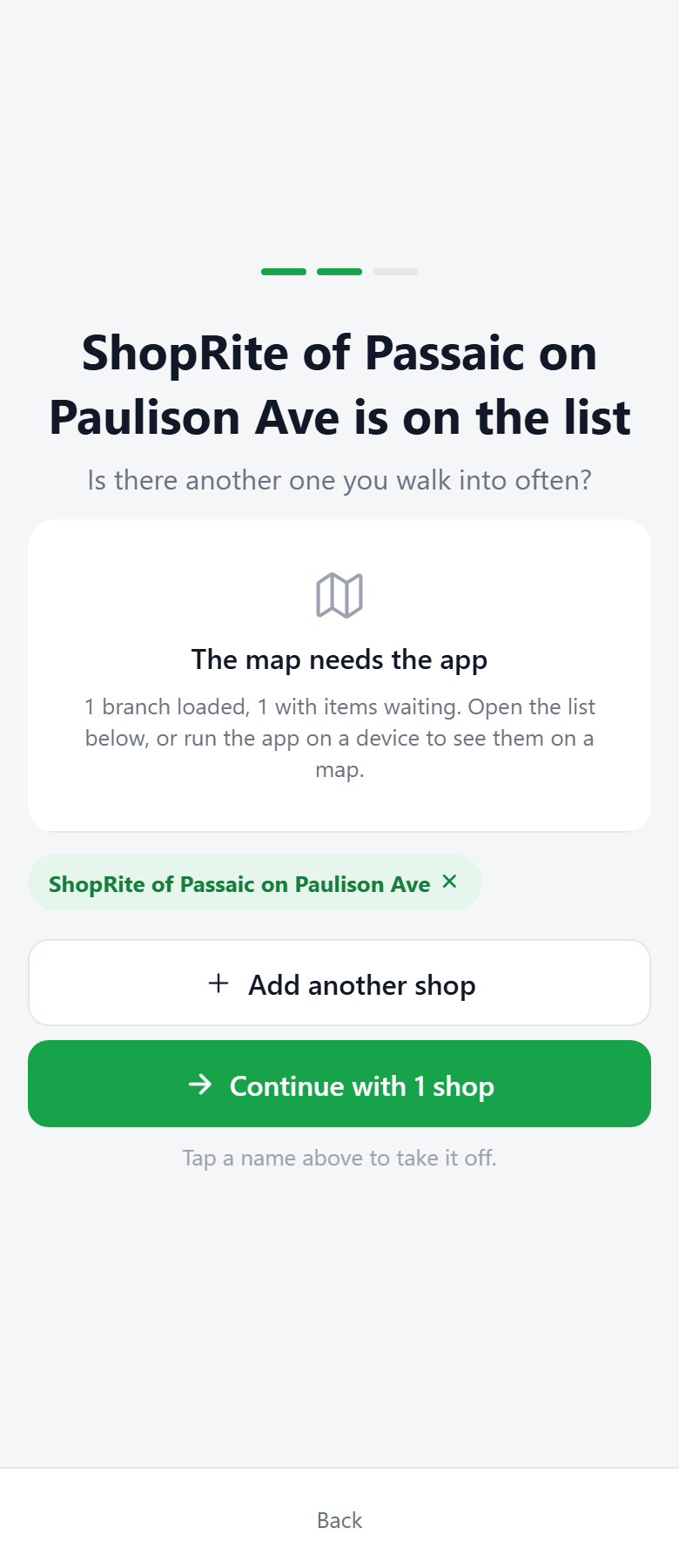
Search, or take one from around you
Type the name — ShopRite, Trader Joe's — and pick the branch you actually use. The address matters: the reminder is tied to that building, not to the chain.
If you are at home, the list underneath is simply what is near you right now. Tap one and it is added.
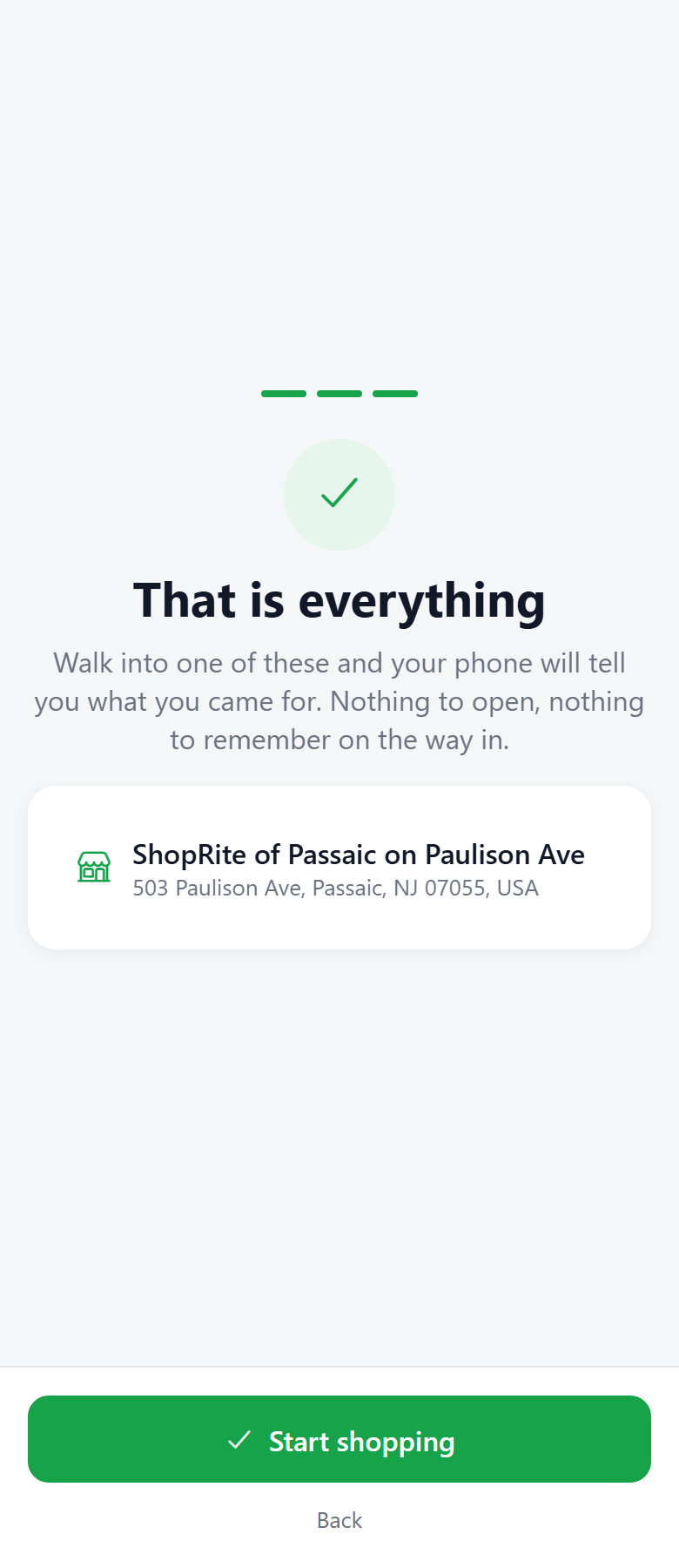
That is the whole setup
From here on the app does not ask you to configure anything. Walk into one of these stores and your phone tells you what you came for — nothing to open, nothing to remember on the way in.
Part two
The one thing you do every day
You are at the fridge and the milk is gone. That moment is the whole app.
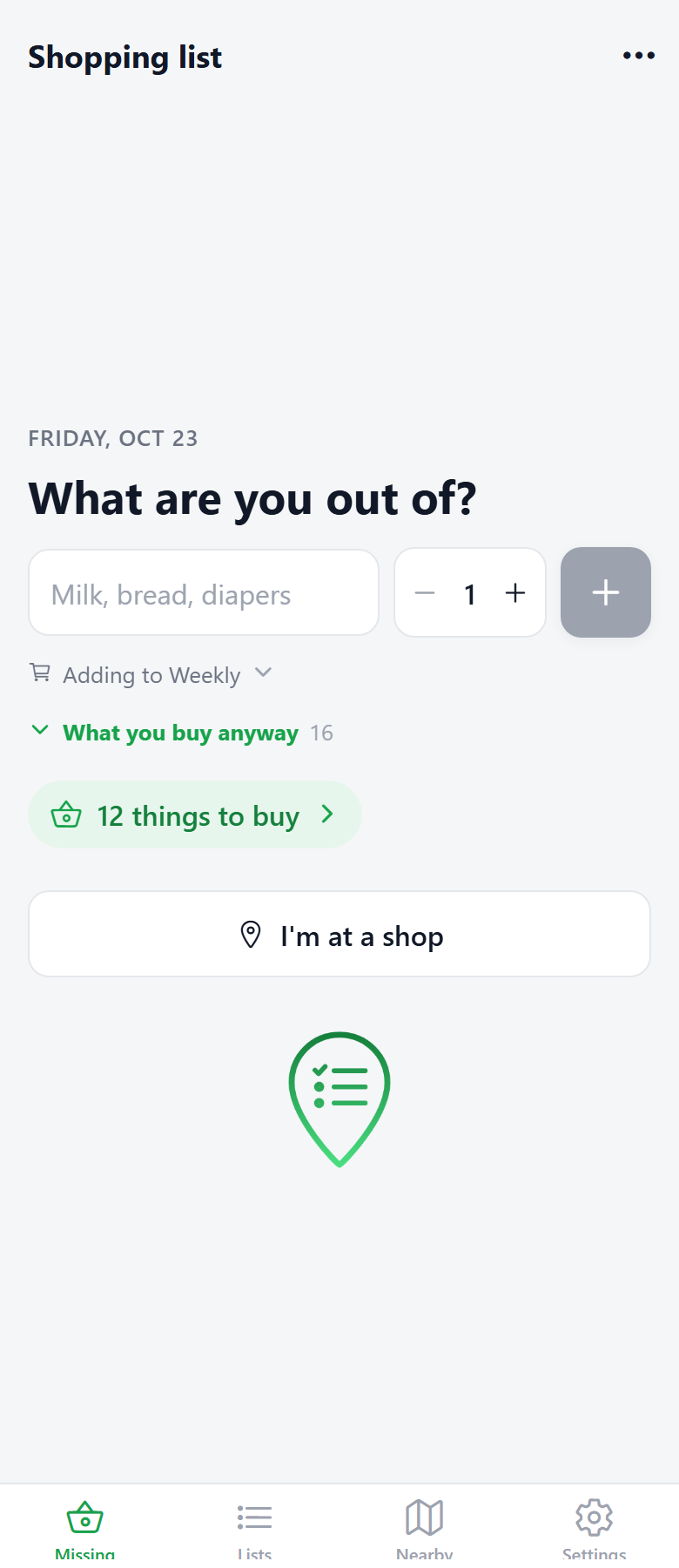
One box, one question
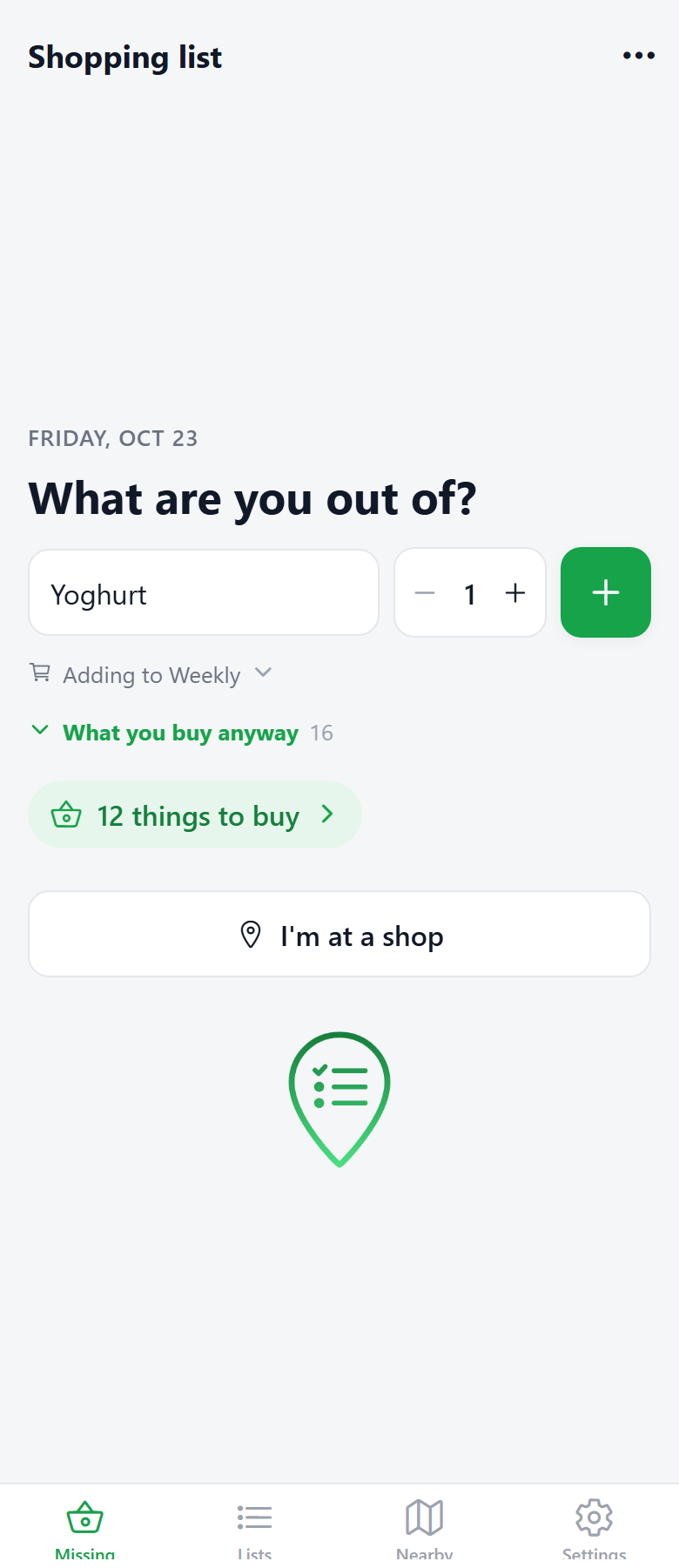
The home screen asks “What are you out of?” and nothing else. There is no list to open first, no category to choose, no form to fill in. Type a word, tap +, close the app.
The number beside the box is how many. Tap the minus and plus to change it before you add.
It already knows what you buy
Start typing and it offers what this household buys, then the wider catalogue. Tap one, or just press return with what you typed — either way it lands on the list.
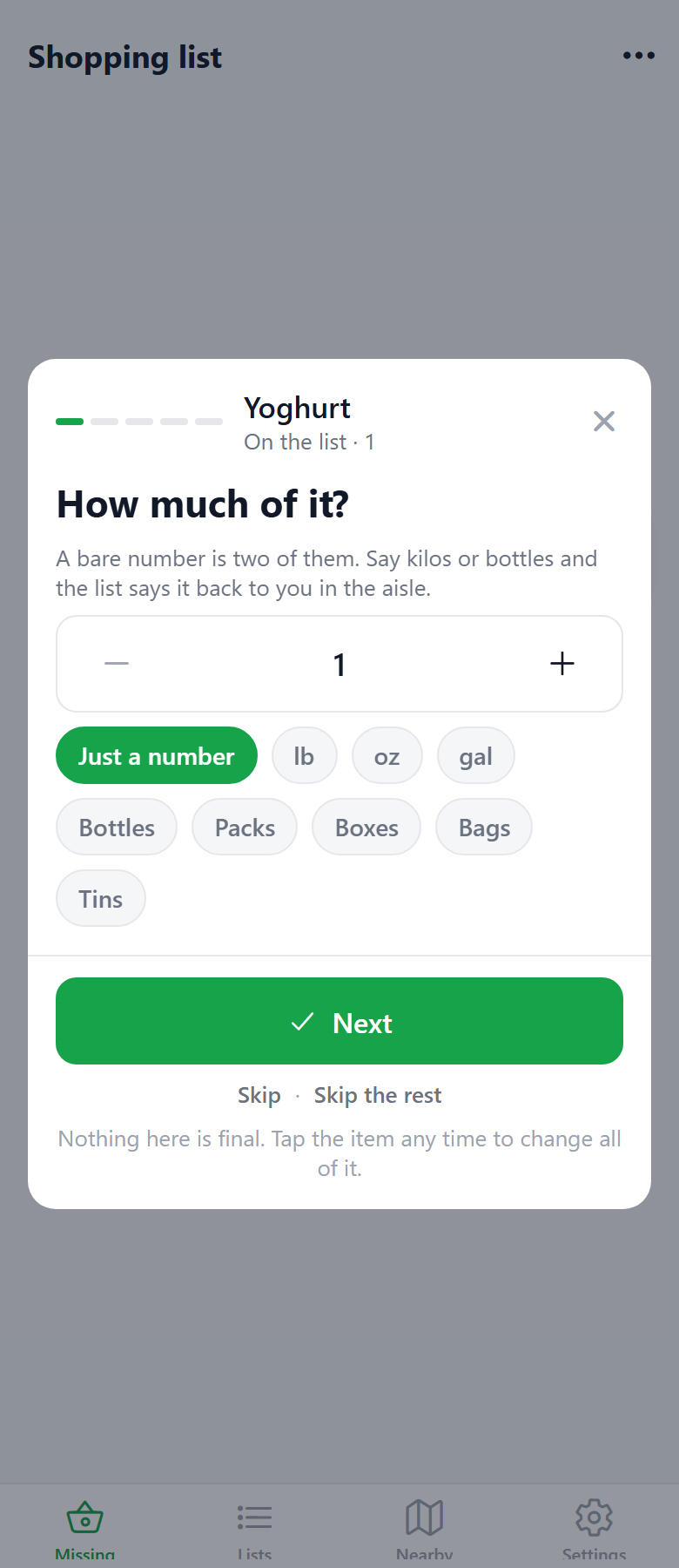
What comes after is an offer, not a form: how much, which brand, which store, which day. Every one of those has a sensible answer already and a Skip beside it. Ignore the whole thing and the item is still on your list.
What you buy anyway
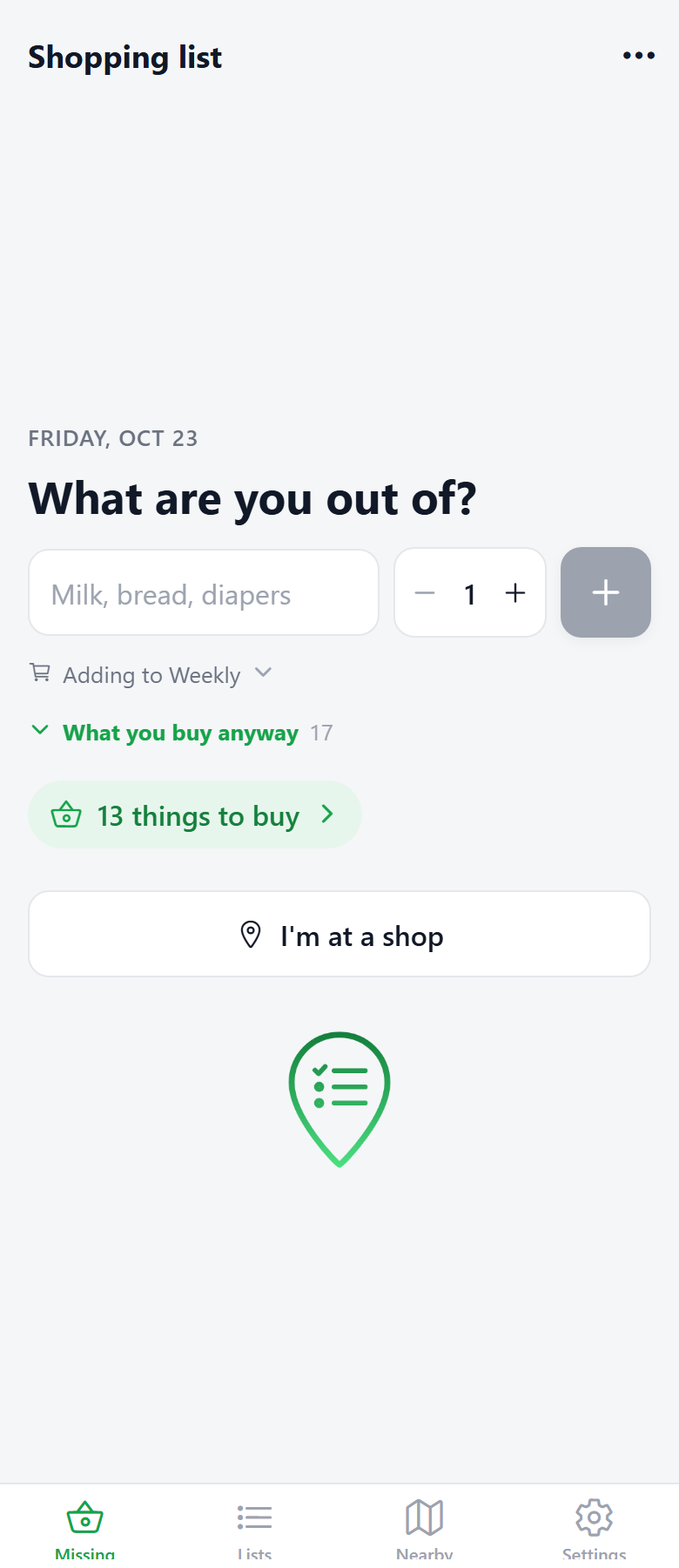
Under the box is a shelf of the things this house buys regularly. One tap puts one on the list — no typing, no questions. It is the fastest way to rebuild a weekly shop.
The green pill — “4 things to buy” — is the way into everything waiting, wherever it is.
Part three
Seeing what you need
Things you add are filed for you. You never sort anything by hand.
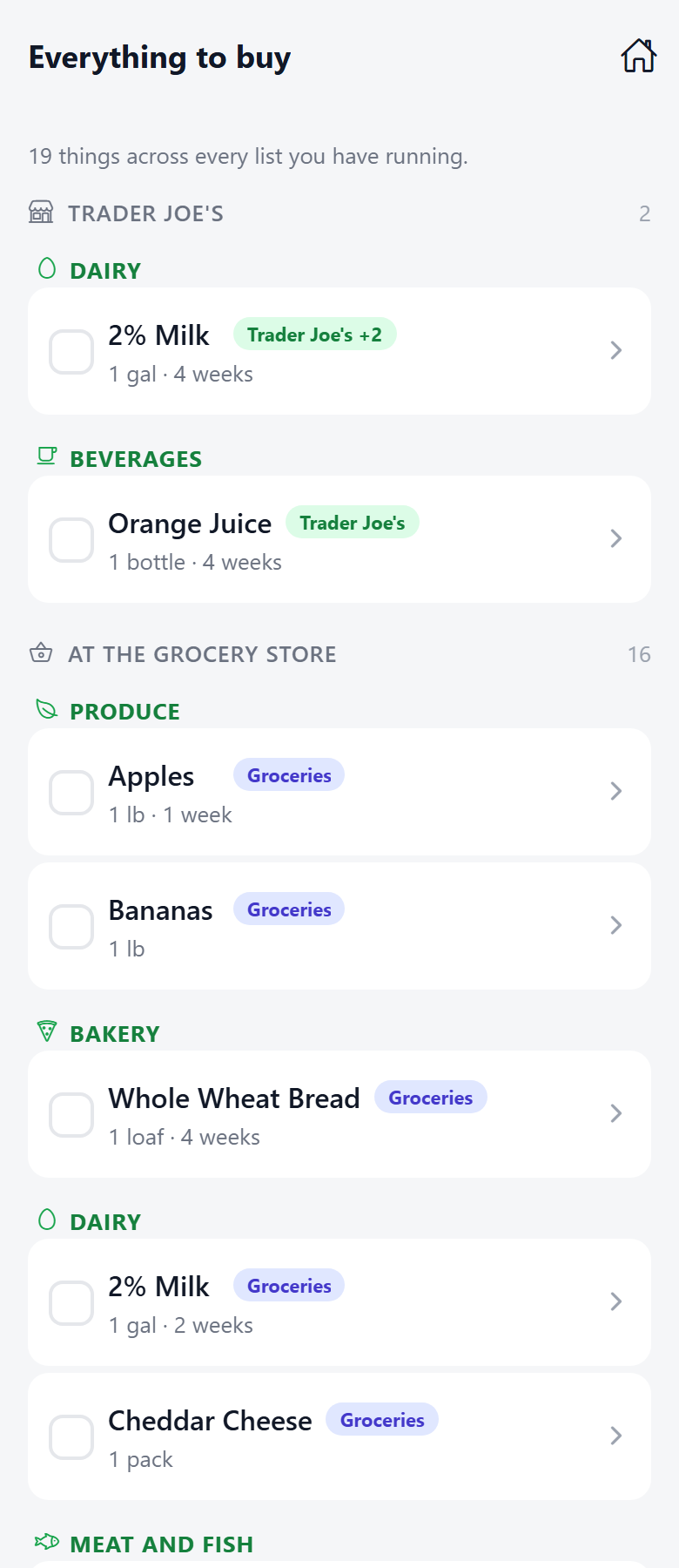
Everything to buy, grouped by store
One screen with all of it, already sorted into the store each thing belongs to. Anything that does not name a store sits under any grocery store — pick it up wherever you happen to be.
Lists, if you want them
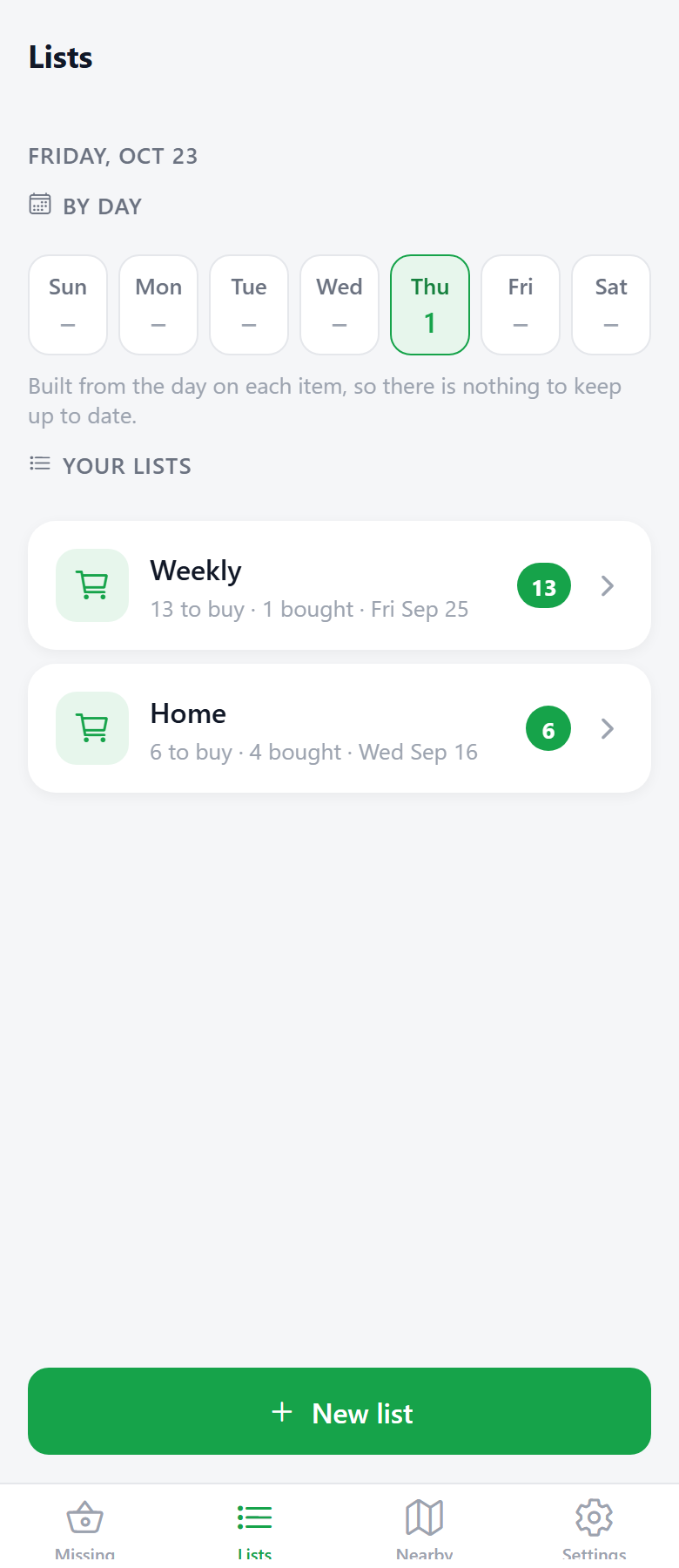
You can keep the Friday shop apart from the pharmacy run. Most people never need to — one list is the default and it is made for you.
The row of days across the top is built from the items themselves. Put a day on something and it shows up there; there is nothing to maintain.
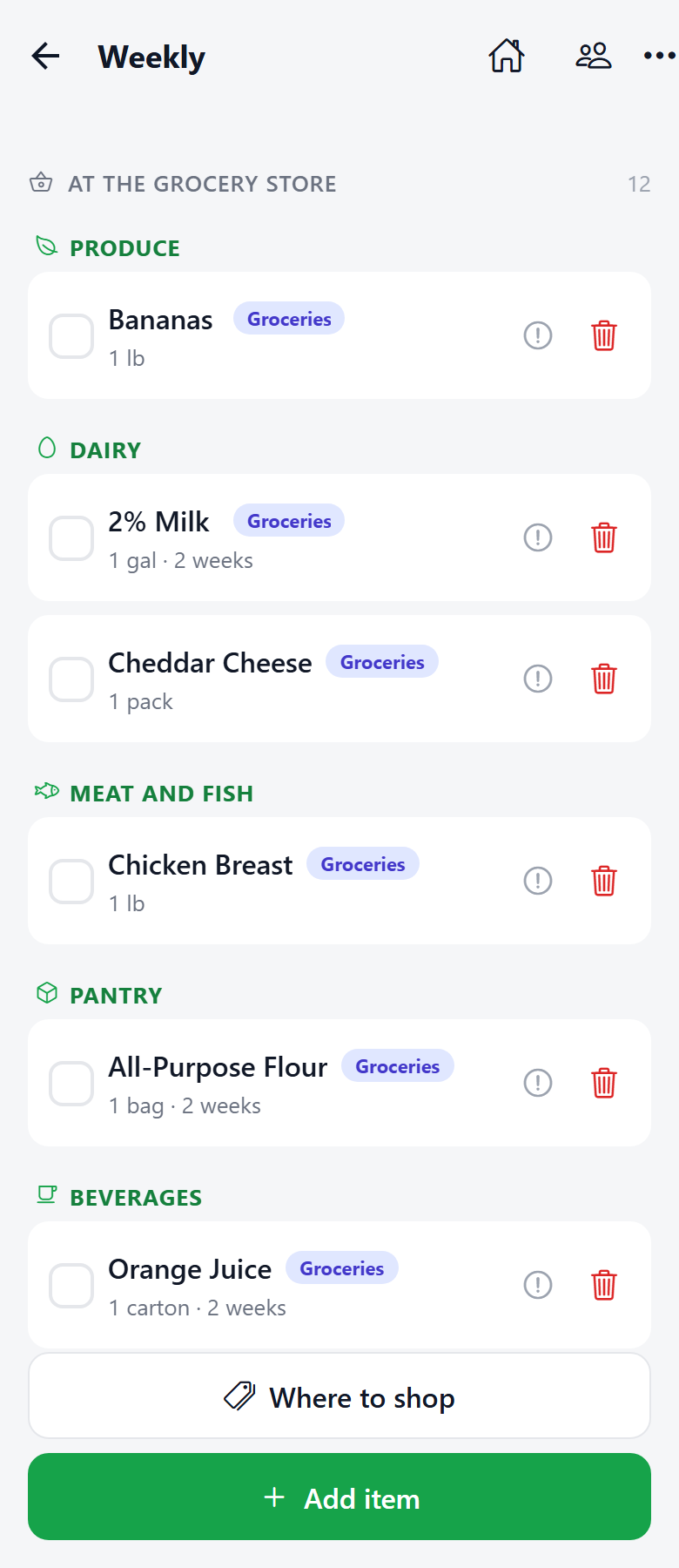
Inside a list, each row has three marks: bought, was not there, and remove. “Was not there” keeps it waiting for the next trip instead of pretending you got it.
Things are grouped by store first, then by aisle inside it — produce, bakery, dairy, and on through to the till. It is roughly the order a shop is walked in, which beats the order you happened to think of things in.
The calendar
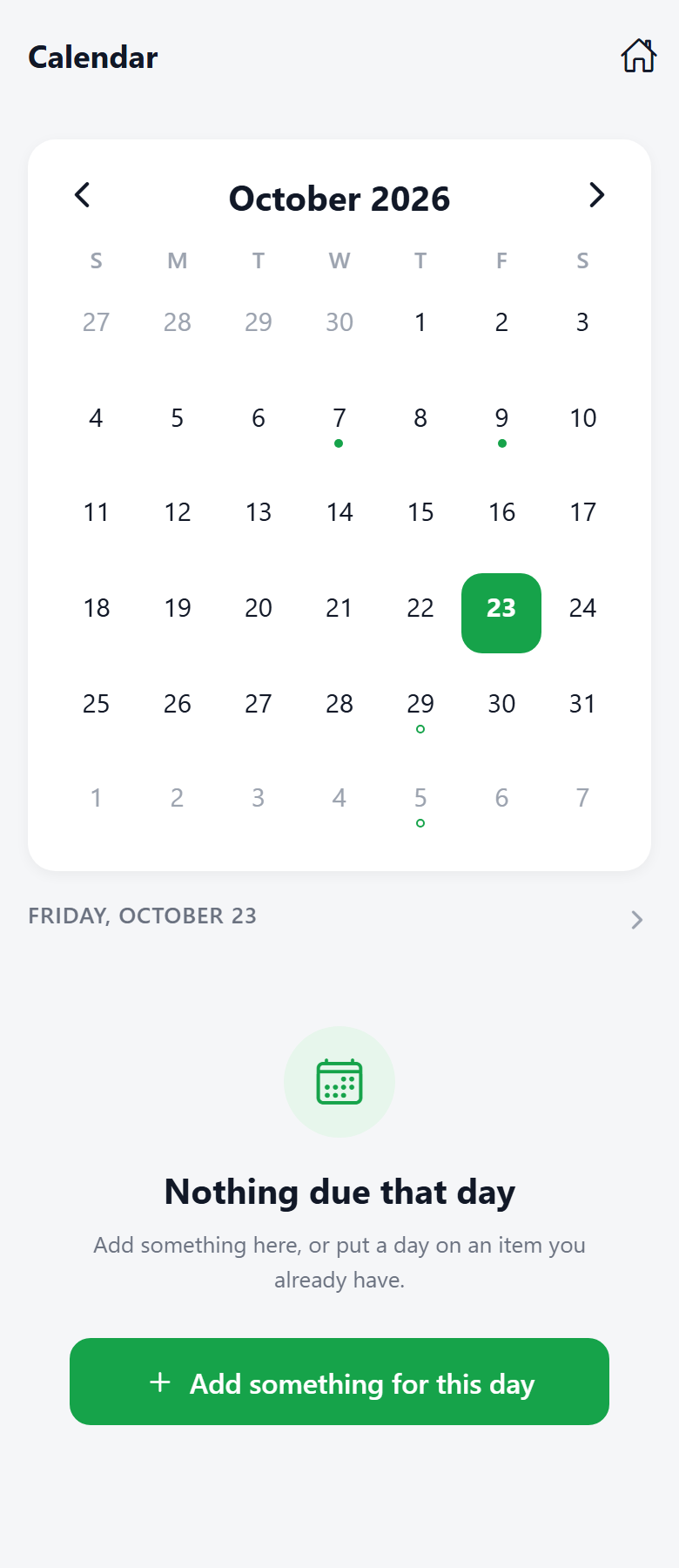
Under the menu. A filled dot is a day you shopped; a hollow ring is a day with something waiting for it. Tap a day to see it, and tap the date underneath — or double-tap the day itself — to open it in full.
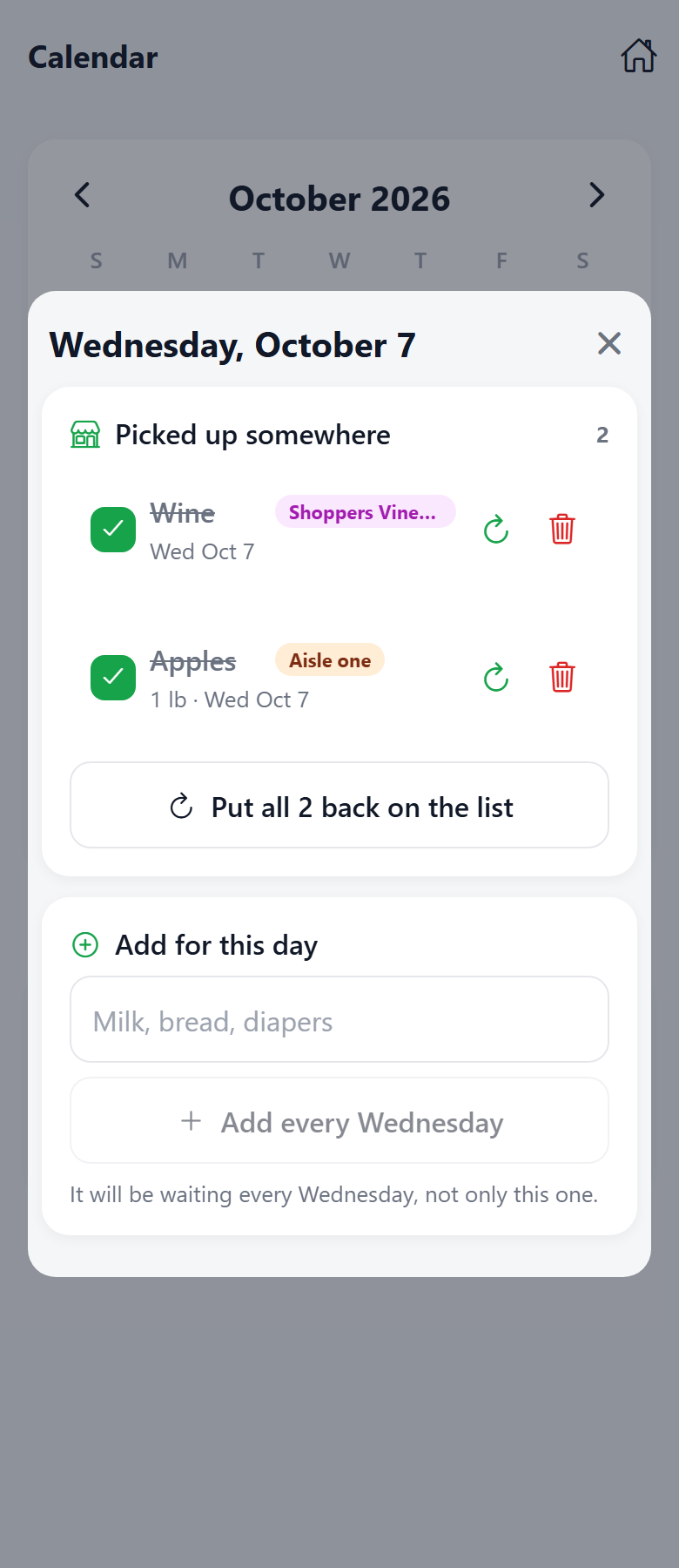
Looking back, it answers the question a list cannot: did we already buy coffee this month? An opened day shows each shop and everything that was in it.
And there is one button worth knowing about: Put all back on the list. Last week's big shop is the best description anyone has of what your house runs out of — so rather than typing it again, take the whole trip back.
Part four
At the store
This is the part no other list does.
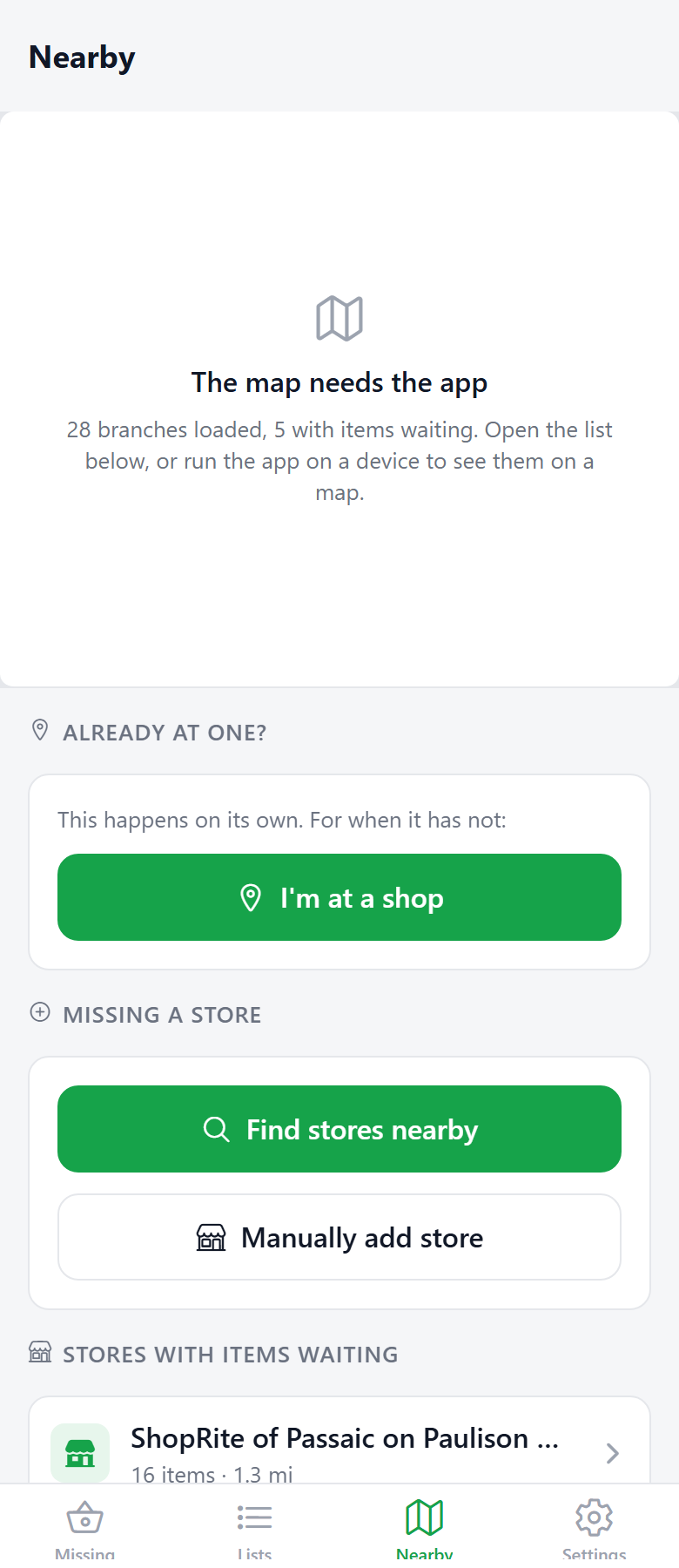
It tells you when you arrive
Walk into one of your stores and your phone shows what you came for. You do not open anything. The app is closed and it still works.
This needs location permission set to Always, and the reminder switched on under Settings. It is the one permission the app genuinely cannot work without.
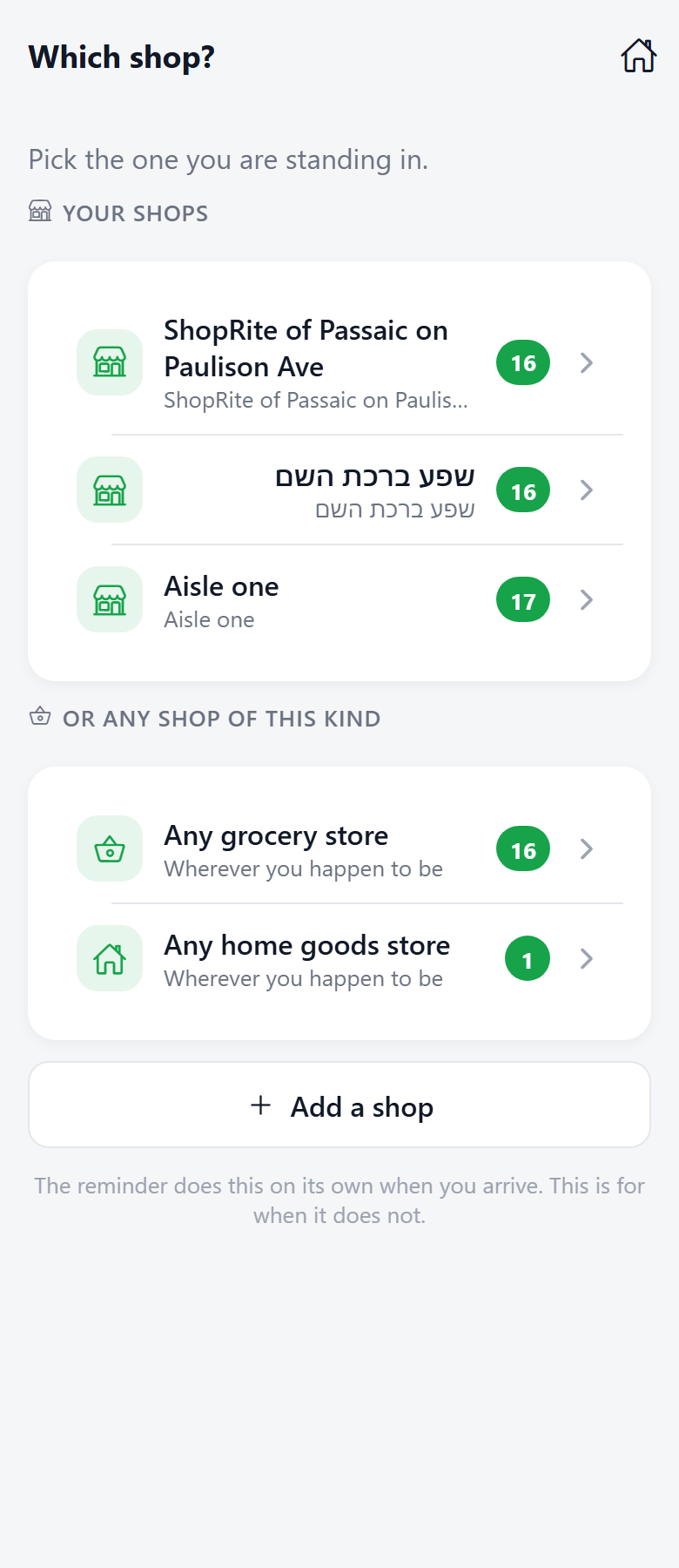
Or tell it where you are
Location is not perfect — a big mall, a basement, a phone saving battery. I'm at a shop on the home screen lets you say it yourself, and you get the same list.
Mark things off as you put them in the cart. A marked row stays where it is until you leave, so you can see what you have already done.
Part five
Worth knowing
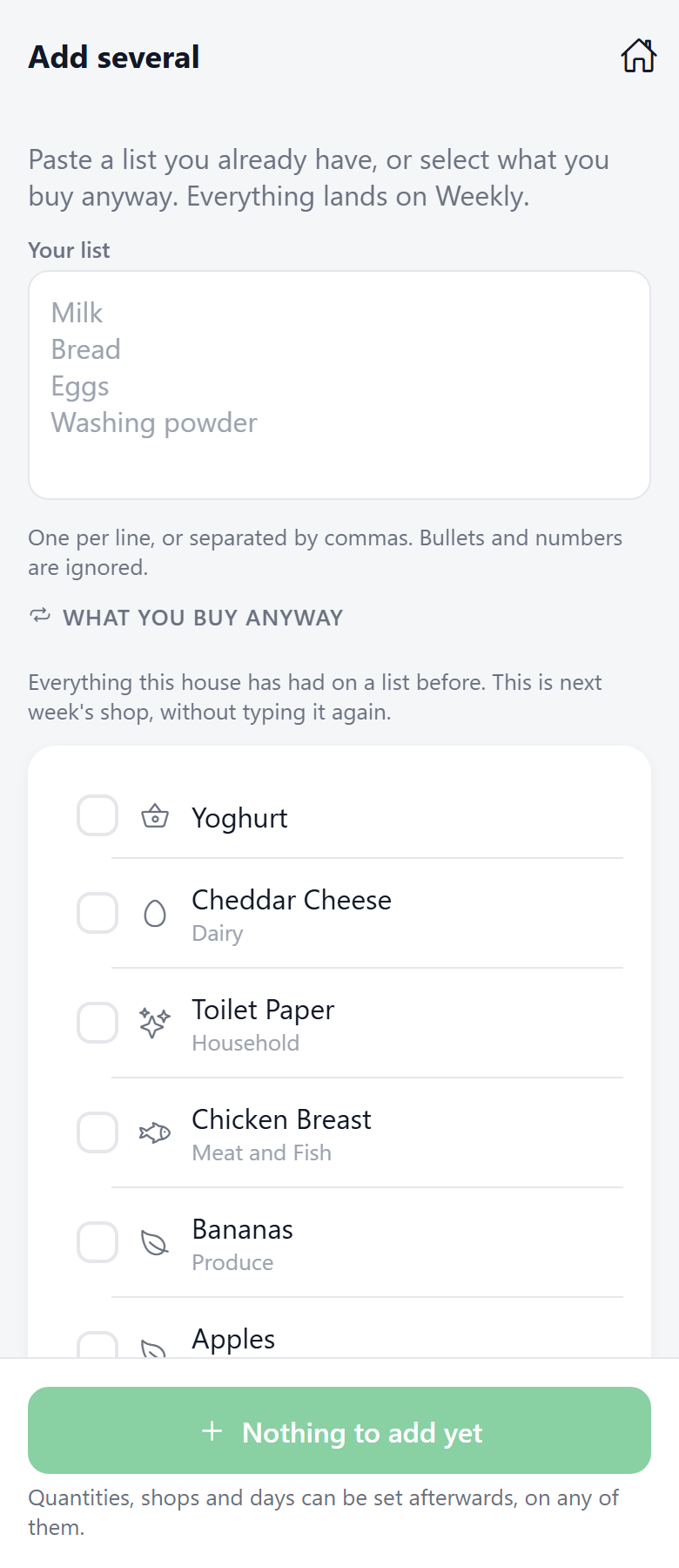
Paste a whole list at once
Have a list already — in a note, a message, a photo you typed out? Add several takes the lot. One per line or separated by commas; bullets, numbers and check boxes are ignored.
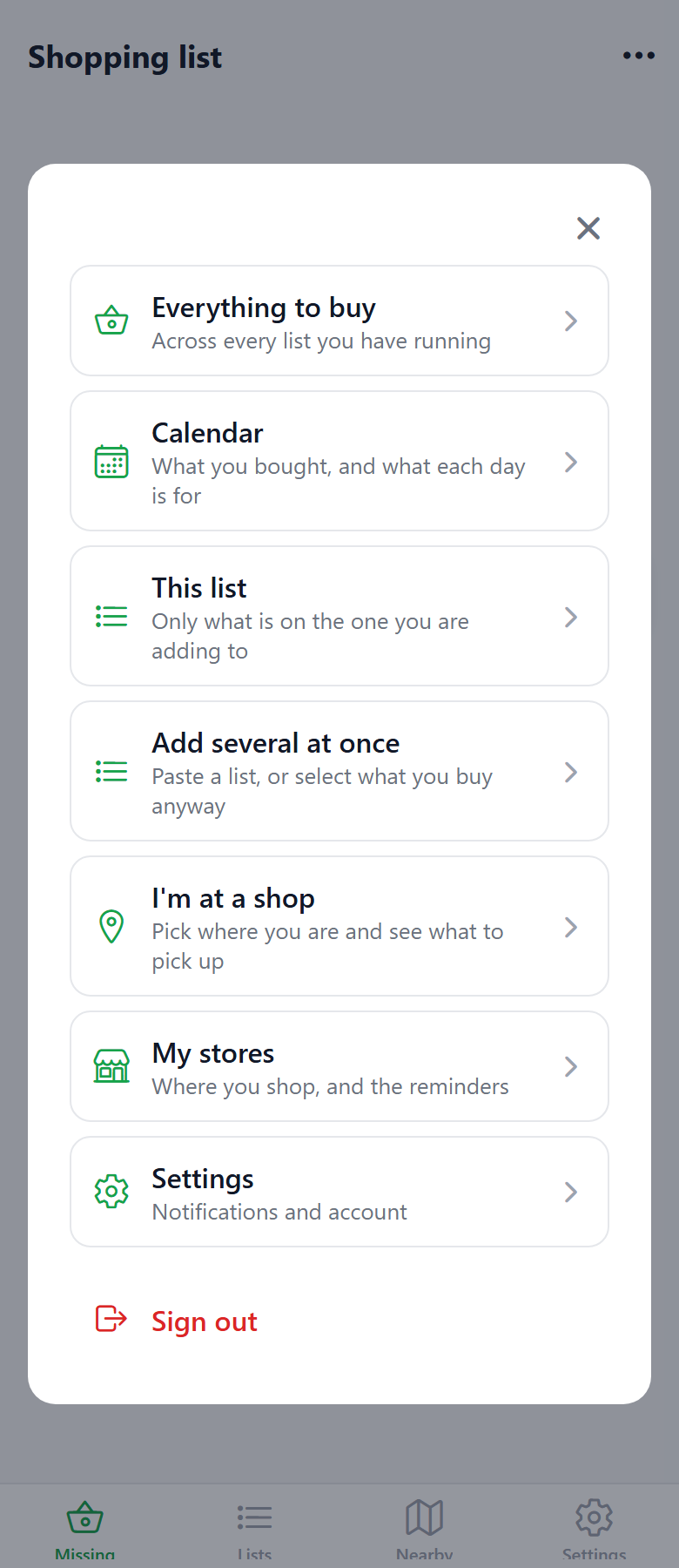
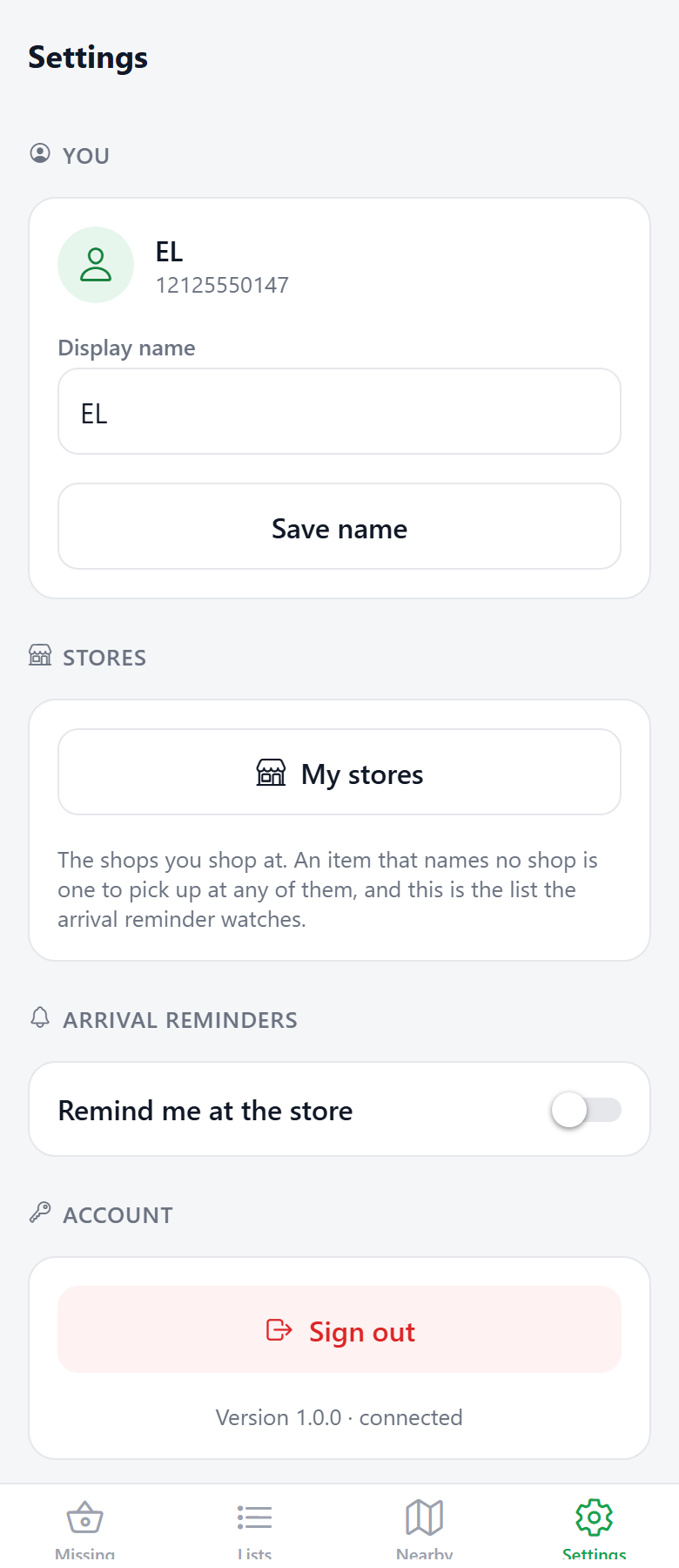
The menu, and Settings
The three dots in the top corner hold everything that does not need a place on the home screen: everything to buy, the list you are adding to, add several, I'm at a shop, your stores, settings.
Settings is where you turn the arrival reminder on, give yourself a name, and manage your stores — including the colour each one is tagged with, so a list tells you where each thing belongs at a glance.